Quick Start
This walkthrough gets you from download to an interactive structural response in about a minute.
1. Download ObjectiveFrame
Download the latest Windows release from GitHub:
Unpack or install the release, then start objectiveframe.exe.
2. Choose an Interface and Open an Example
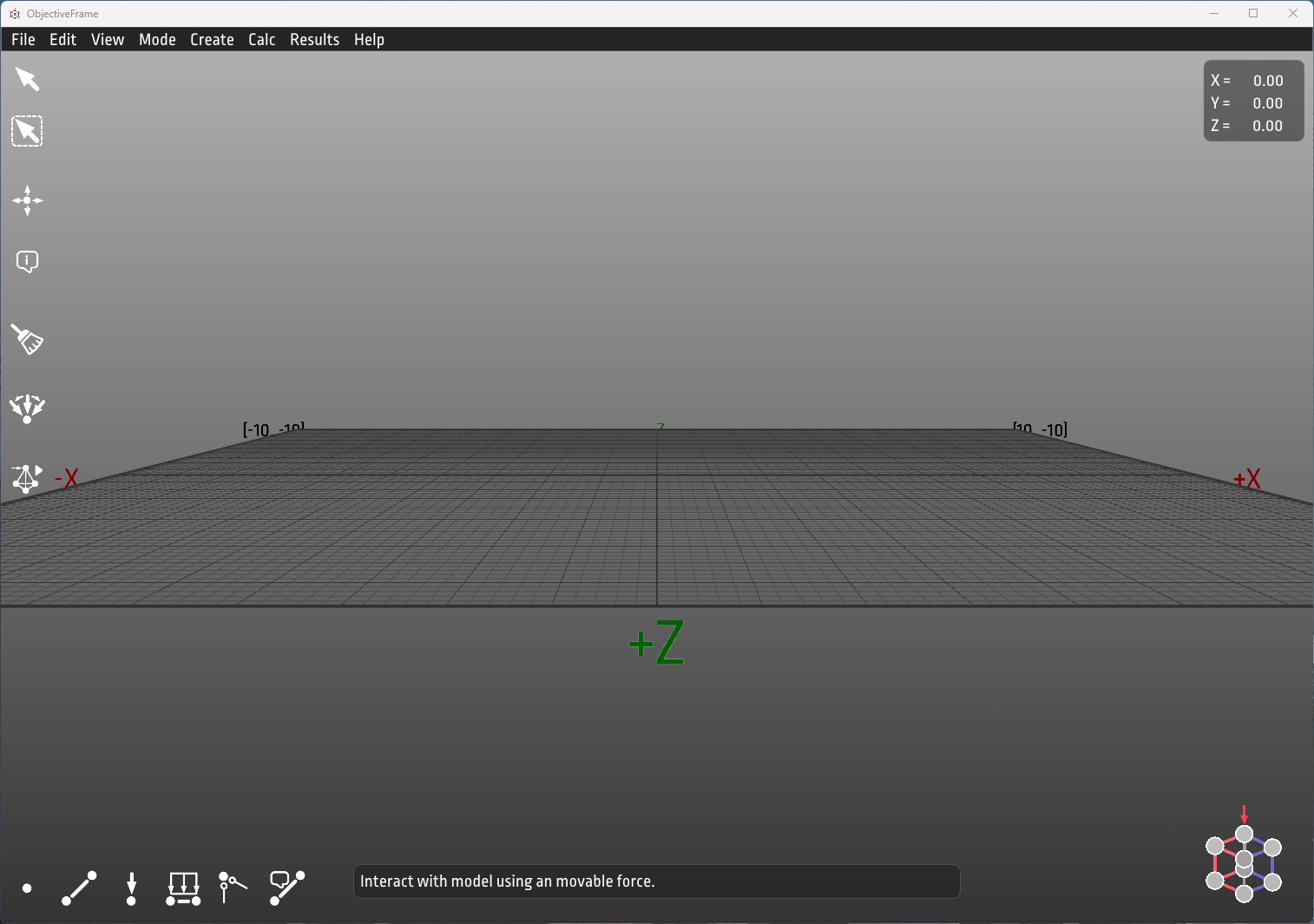
ObjectiveFrame opens on a start page. If this is your first time, pick the Simple interface: it hides element types, the load, support and material property dialogs, and the selection filters, leaving enough to build, support, load and solve a structure. Advanced shows everything, and you can switch at any time without changing the model.
The start page also lists the bundled examples as thumbnails. Open one from there, or open an included .df3 model from the examples folder. Good first examples are:
bin/examples/bar_bridge.df3bin/examples/bridge_with_beams.df3bin/examples/dome_frame.df3bin/examples/building_with_load.df3
3. Run the Analysis
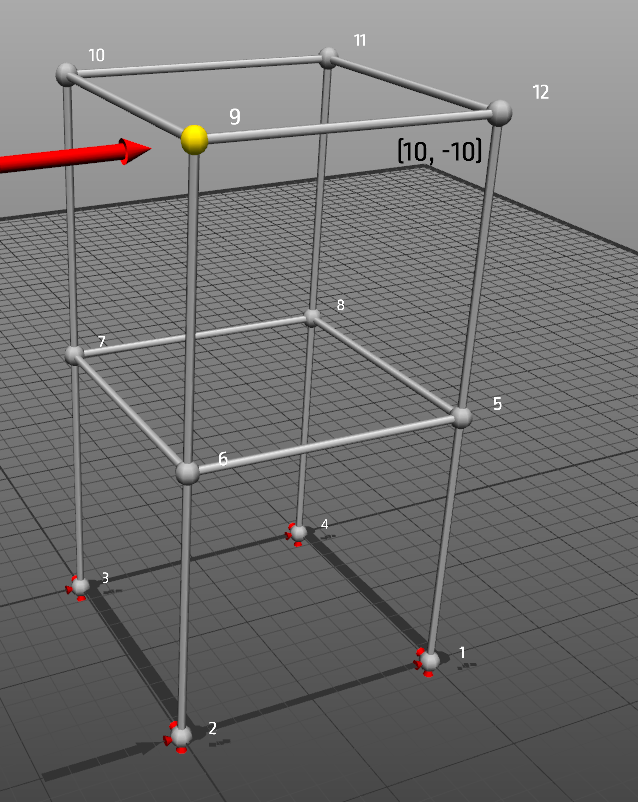
Use Calc / Execute or press Ctrl+R to compute the structural response.
ObjectiveFrame can visualize deformation, normal forces, moments, and other result modes.
4. Explore Section Forces
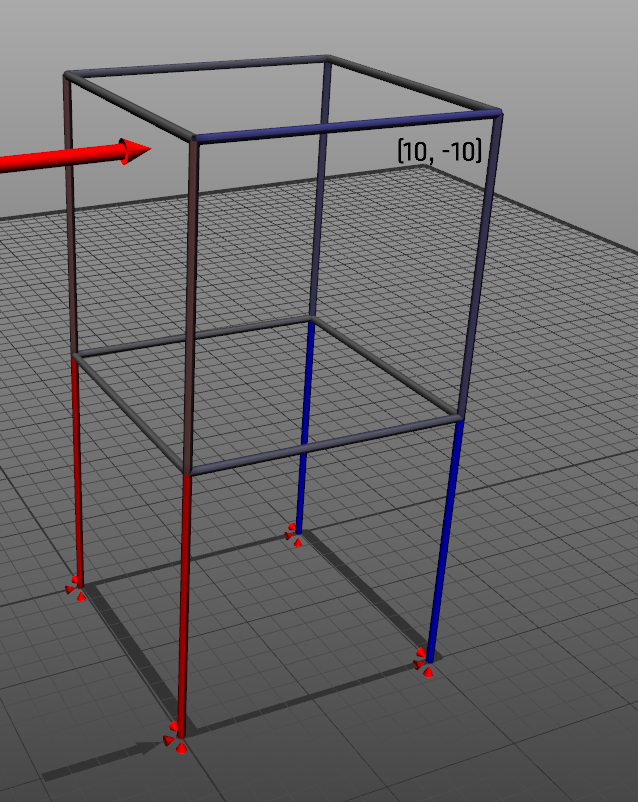
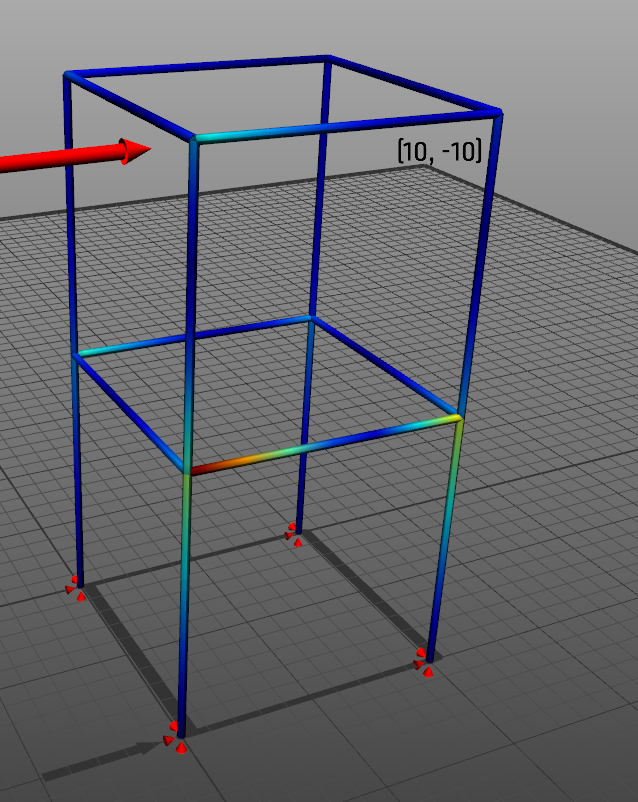
Switch result views to inspect the internal force state of the model.
5. Move a Force in Feedback Mode
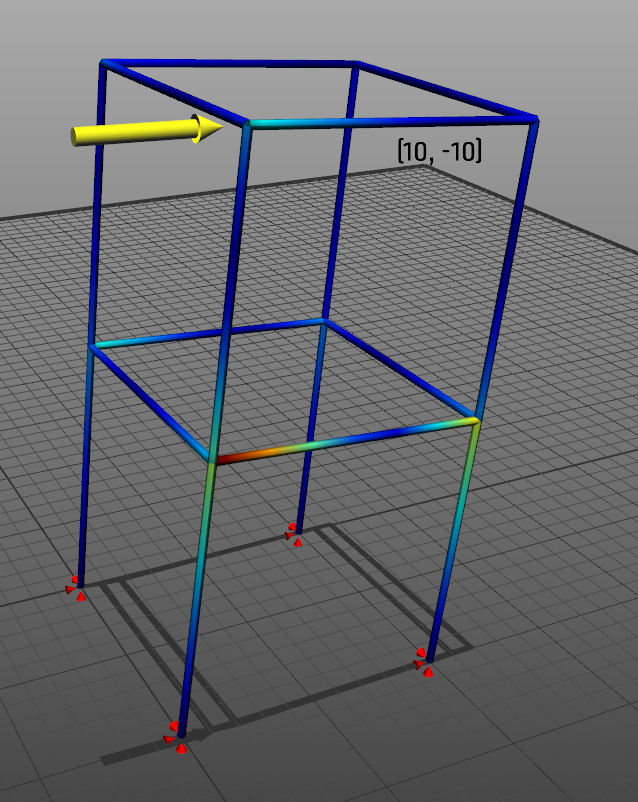
Enable feedback mode, place a force on a node, and move it interactively. The structure updates in real time so you can see how load position and direction affect deformation and section forces.
Tip
Feedback mode is the fastest way to demonstrate structural intuition in class: students can see immediately how changing a load changes the response.
6. Build Something of Your Own
- Place nodes with the node tool, holding [Shift] to move off the ground plane.
- Connect them with the element tool, or select a group of points and press [Ctrl+M] to let ObjectiveFrame connect them for you.
- Use Quick support and Quick force to drag supports and loads straight onto nodes.
- Turn on View / Self-weight... to let the structure carry its own weight.
- Repeat a bay with Modify / Array, or reshape a selection with Modify / Transform....
Next Steps
- Browse the examples gallery.
- Learn the core modelling workflow in Using ObjectiveFrame.
- Explore unstable structures with the Eigenmode solver.
- Try script-based model generation with ChaiScript.
- Drive ObjectiveFrame from Python with the Automation API.